Home › Guides › Edit camera RAW on phone
Edit Camera RAW on Your Phone
Short answer: Your phone can develop the RAW files from a real camera — Canon CR3, Sony ARW, Fujifilm RAF, Nikon NEF. Copy the file to your phone, open it in Fimii, and you get true 16-bit develop with full RAW editing tools — no desktop needed.
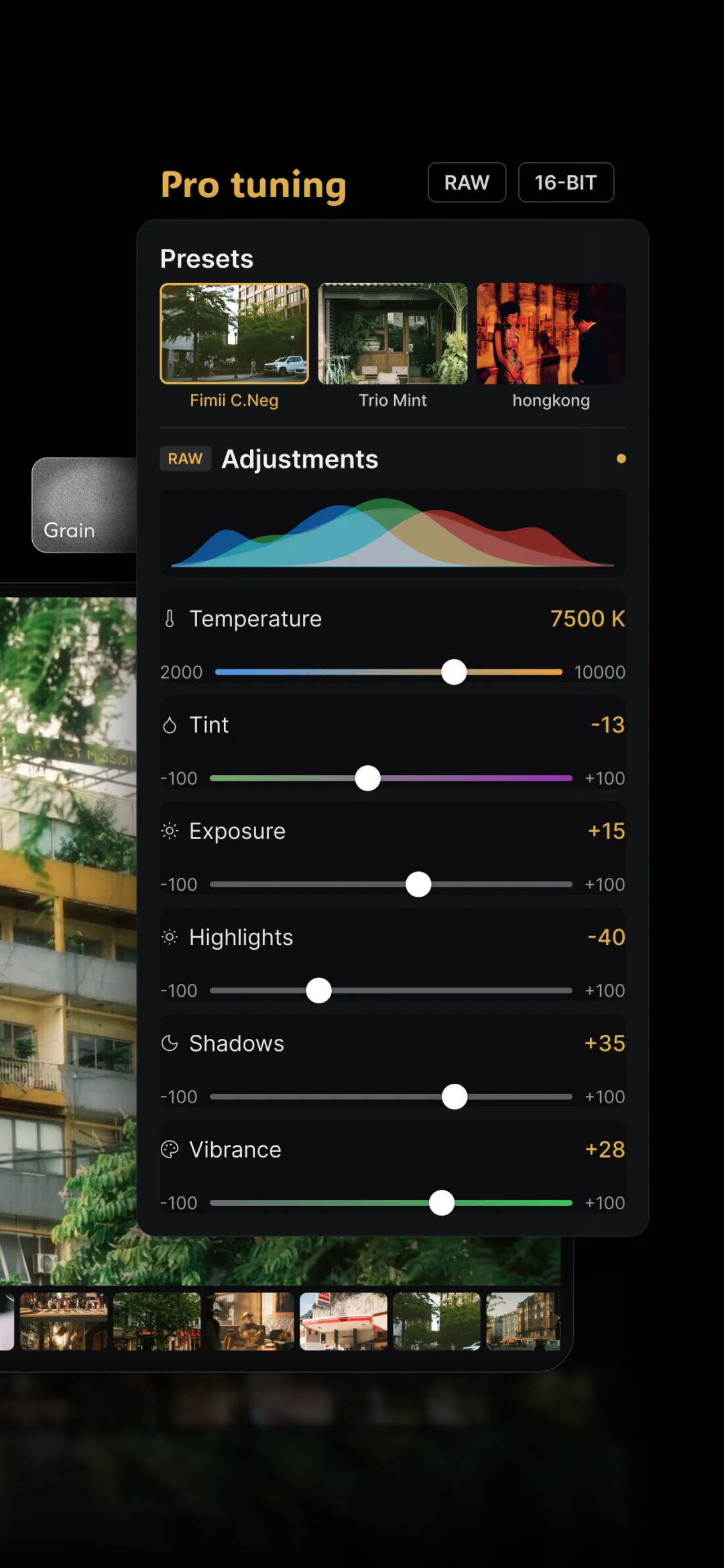
Phone RAW is great, but plenty of people shoot a proper camera and only have a phone to edit on. Good news: the same RAW develop pipeline that handles ProRAW and DNG also reads the big camera formats, so you can grade a mirrorless file on the train home.
Getting the file onto your phone
However you transfer — the camera's Wi-Fi app, a card reader, AirDrop, or a USB-C cable — the goal is the same: get the RAW into your phone's photo library or Files. Once it's there, it opens like any other image.
- Card reader is the fastest and most reliable for a batch.
- Wi-Fi transfer from the camera app is convenient for a few select frames.
- Keep the original on the card until you've confirmed the copy — RAW files are your negatives.
Canon (CR3)
Canon's modern RAW is CR3 (older bodies use CR2). Canon color is known for pleasing, slightly warm skin tones, so lean on that: a gentle white balance nudge and a soft contrast curve usually gets you most of the way. The generous highlight roll-off means skies and skin recover beautifully.
Sony (ARW)
Sony files are ARW and carry enormous dynamic range, especially in the shadows. That's your advantage: expose to protect highlights, then lift the shadows in develop — Sony's clean shadow data takes the push well. Sony skin can read a touch cool or green out of camera, so a small warm-and-magenta white balance correction is a common first move.
Fujifilm (RAF)
Fujifilm's RAF files come from cameras famous for their film simulations. When you develop the RAF yourself you're building the look from the sensor data, which pairs naturally with handcrafted film presets — think of it as choosing your own simulation rather than baking in the camera's.
Nikon (NEF)
Nikon's NEF files are known for neutral, accurate color and deep highlight latitude. That neutrality is a blank, honest canvas: it takes a film-style grade cleanly without fighting a strong baked-in character, so your curves and color wheels do exactly what you expect.
Doing it in Fimii
Fimii develops CR3, ARW, RAF and NEF in true 16-bit, entirely on your phone and non-destructively. You get the full grading kit — color wheels, HSL, RGB and per-channel tone curves, and white balance — plus film presets and grain on top. Because it works from the RAW, recovering blown highlights and crushed shadows holds together cleanly, and you can even use look-match to line up two cameras' colors. It's a genuine desktop-style develop that happens to live in your pocket.
Mistakes to avoid
- Editing the camera's JPEG instead of the RAW. If you shot RAW+JPEG, grade the RAW — that's the file with latitude.
- Expecting the camera's baked look. A developed RAF won't match Fuji's in-camera simulation until you build the look — that's the point.
- Deleting the card too soon. Confirm every copy transferred before you format.
- Ignoring lens profiles. Some vignetting and distortion is normal in RAW; correct it rather than fighting it with the grade.
Fimii develops Canon, Sony, Fujifilm and Nikon RAW on your phone in true 16-bit — a full desktop-style grade in your pocket. Free to download, one-time unlock, no subscription.
Get Fimii — free to download