Home › Guides › HSL adjustments: fix skin tones & color
HSL Adjustments: Fix Skin Tones & Color
Short answer: HSL lets you change one color at a time — its Hue, Saturation, and Luminance — without touching the rest of the photo. Skin lives mostly in the orange band, so that's your go-to for fixing complexions. Use the green and blue bands to calm overpowering foliage and skies.
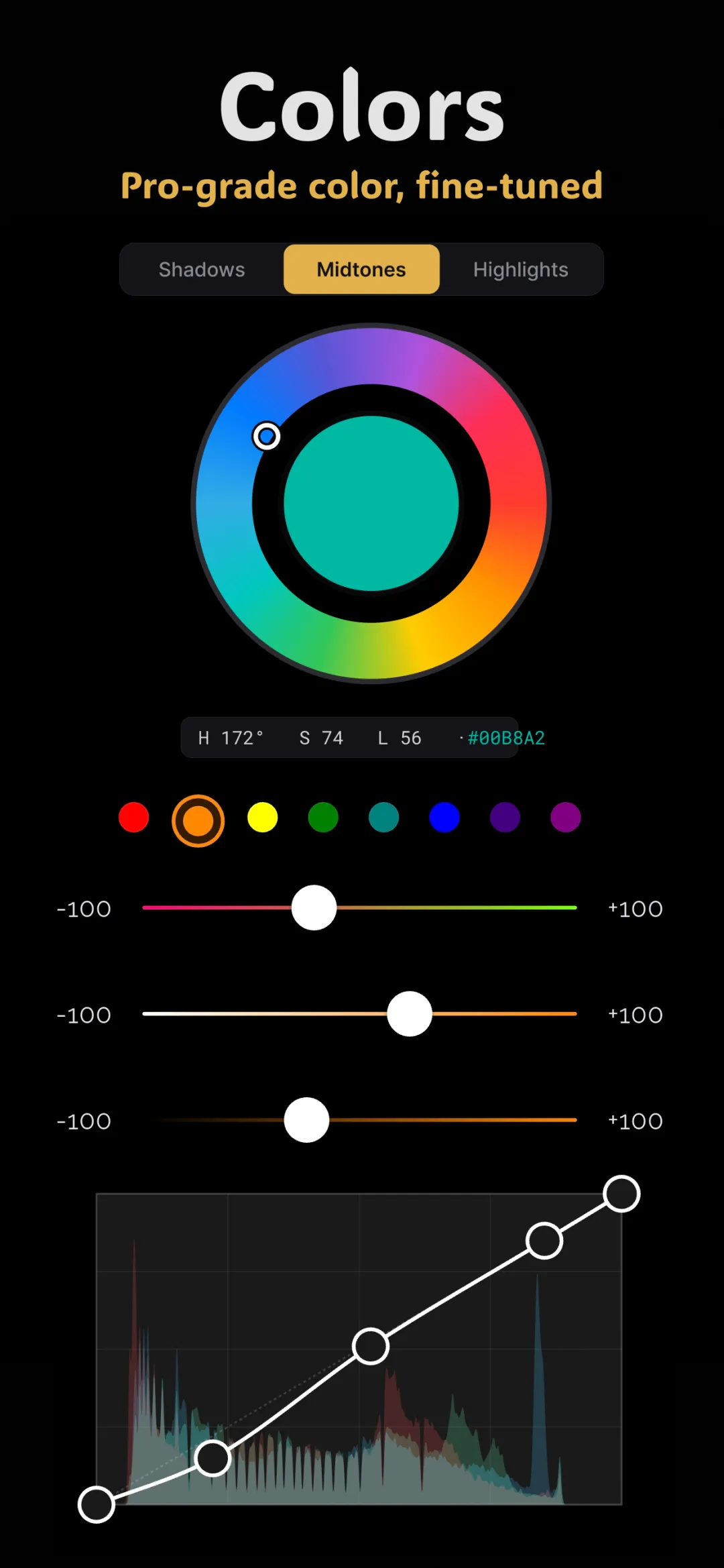
HSL is the most precise color tool you have, and once you understand it, fixing "that one color that looks wrong" stops being guesswork. It's a key part of color grading photos on your phone, and it's the tool most responsible for natural-looking skin.
What H, S, and L actually mean
HSL is a way of describing any color with three numbers. Getting these three straight is 90% of the battle.
- Hue is the color itself — where it sits on the rainbow. Shifting the hue of the orange band moves skin toward red or toward yellow.
- Saturation is how intense the color is. High saturation is vivid; drop it to zero and the color becomes gray.
- Luminance is how bright that color is. Raising the luminance of the blue band, for example, lightens a sky without lightening everything else.
The bands: color, sorted into groups
An HSL panel splits the spectrum into bands — typically red, orange, yellow, green, aqua/cyan, blue, purple, and magenta. Each band has its own Hue, Saturation, and Luminance sliders. Move a slider and only the pixels in that color range respond. That's what makes HSL surgical: you can deepen a blue sky while leaving skin, grass, and everything else exactly as it was.
Fixing skin tones — the orange band
Here's the single most useful fact in this guide: human skin, across every ethnicity, lives mostly in the orange band, with some spill into red and yellow. Skin tones differ in brightness and saturation far more than in hue, which is why the orange controls work universally.
Common skin fixes
- Skin too orange / sunburned. Lower the saturation of the orange band a little. This is the most common fix and it works fast.
- Skin too yellow or sickly. Shift the orange hue slightly toward red to add healthy warmth.
- Skin too dark or muddy. Raise the luminance of the orange band to brighten complexions without blowing out the background.
- Skin too red / flushed. Nudge the red band's hue toward orange and drop its saturation a touch.
Make these moves small. A few points on a slider is usually enough — HSL is powerful, and it's easy to swing skin into an unnatural zone.
Taming greens and blues
Phone cameras love to over-saturate two colors: grass and sky. Both are easy HSL fixes.
- Electric green foliage. Lower green saturation, then shift the green hue toward yellow for a warmer, more filmic tone, or toward aqua for a cooler one. Dropping green luminance also makes leaves look richer and less neon.
- Overpowering blue sky. Lower the blue saturation and drop the blue luminance to make the sky deeper and more dramatic. If the sky has gone cyan, shift the aqua band's hue toward blue.
A subtle trick for portraits outdoors: pulling green saturation down slightly stops background foliage from casting a distracting color and helps the person stand out.
HSL vs. color wheels — don't confuse them
This trips people up. HSL changes color by its hue — it targets "all the orange" or "all the blue" no matter where it appears or how bright it is. Color wheels change color by brightness — they tint the shadows, midtones, or highlights regardless of what color is there. Use HSL to fix a specific color; use the color wheels to set overall mood. They complement each other, and most finished grades use both.
Doing it in Fimii
Fimii gives you full HSL across every color band — hue, saturation, and luminance sliders for each — right next to the tone curves and color wheels. Because it develops in true 16-bit (including from RAW files), shifting a hue or dropping saturation stays smooth instead of tearing into blotchy patches, which matters a lot on skin and skies. Everything is non-destructive, so you can reset any band instantly. If you start from one of Fimii's handcrafted film presets, the HSL panel is exactly where you'd go to correct skin the preset pushed a little too warm.
Common HSL mistakes
- Killing saturation everywhere. HSL is for targeting one band. If you find yourself pulling every slider down, you wanted a global saturation control instead.
- Shifting the wrong band. Skin bleeds across red, orange, and yellow. If an orange move isn't quite working, the leftover cast is usually in the red band next door.
- Cranking luminance to "brighten" skin. Too much and faces glow unnaturally and lose texture. Nudge, then compare against the original.
- Ignoring the aqua band. Skies and water often sit in aqua rather than pure blue, so that's frequently the band to touch, not blue.
A quick portrait workflow
- Fix exposure and white balance first, so skin starts from an honest color.
- Open HSL and work the orange band: saturation down slightly, luminance up slightly, hue nudged toward red if needed.
- Calm the background: drop green and blue saturation a little so the subject leads.
- Step back, then fine-tune. If skin still fights you, it's almost always the orange saturation.
Fimii's HSL works on every color band with true 16-bit precision — so skin tones come out clean and natural, never blotchy. Free to download, no subscription.
Get Fimii — free to download